Beta
garfield
File Manager
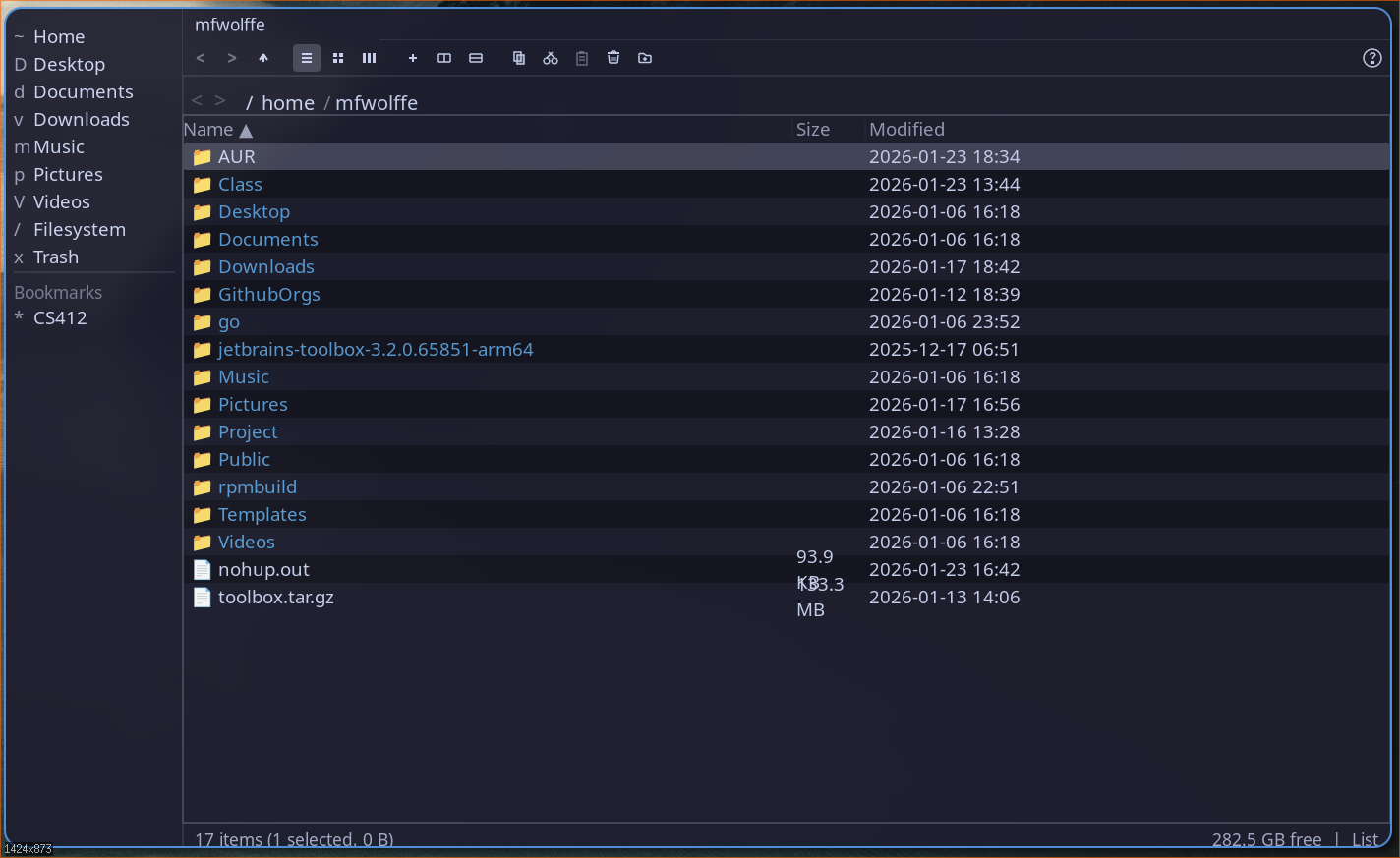
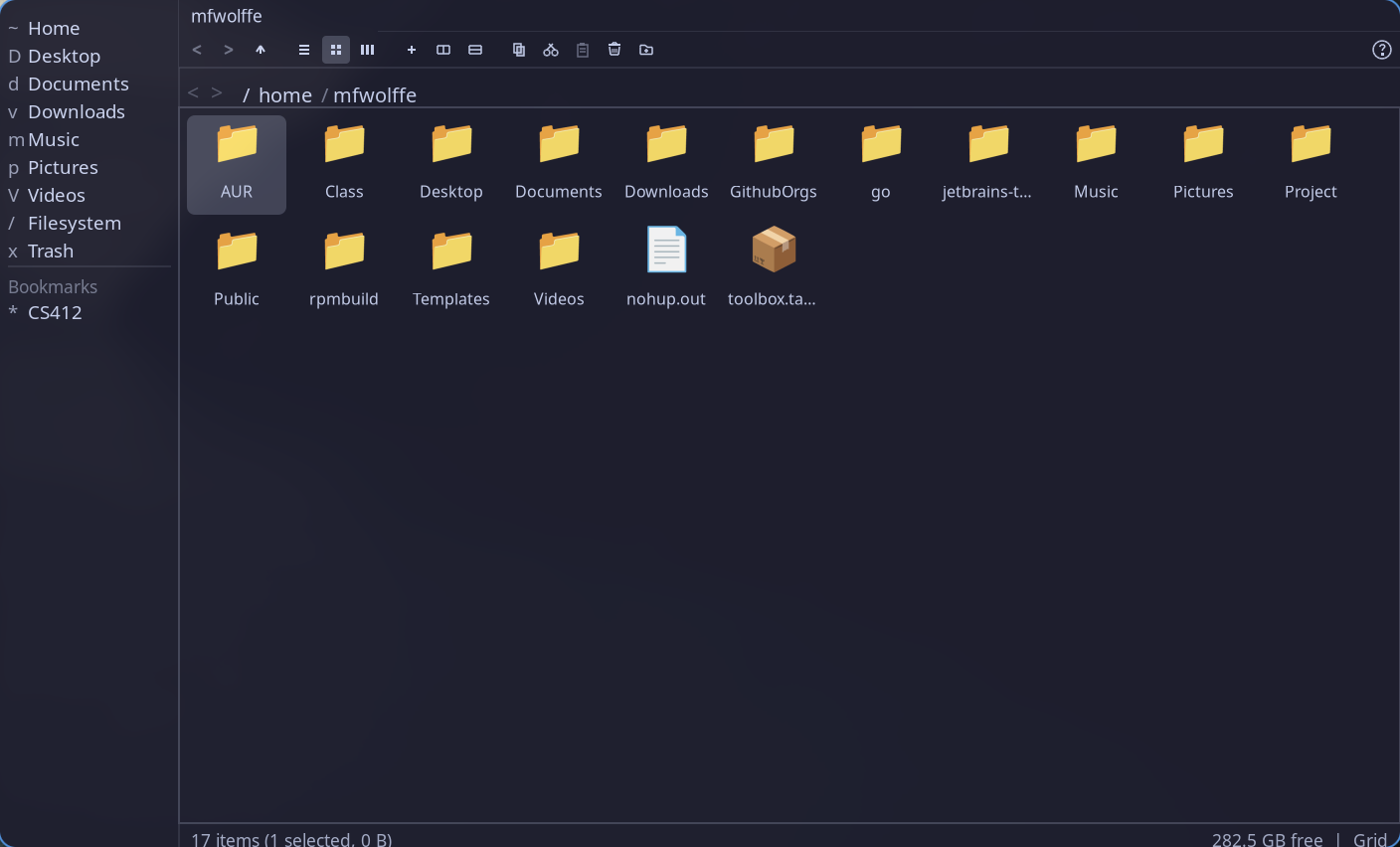
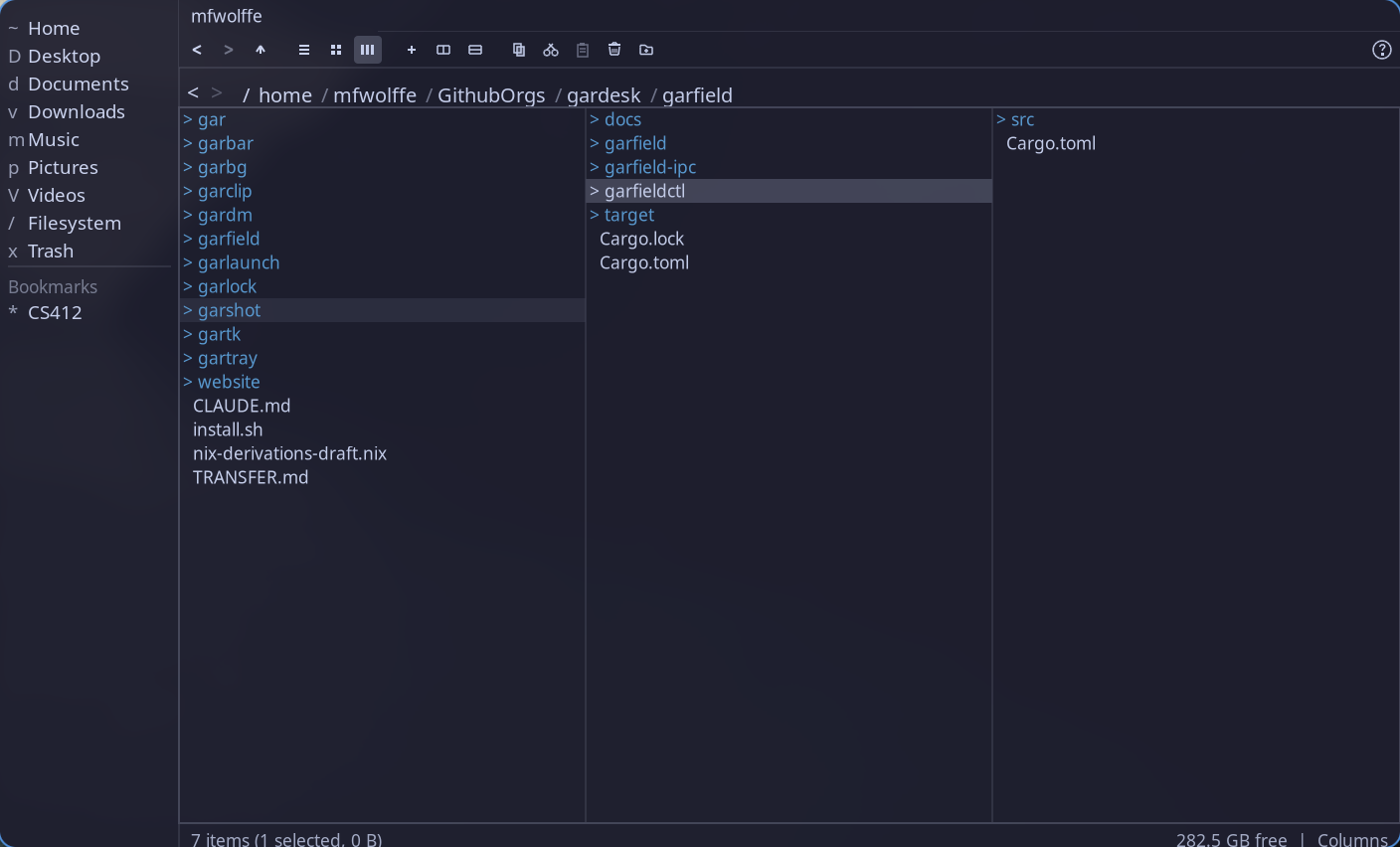
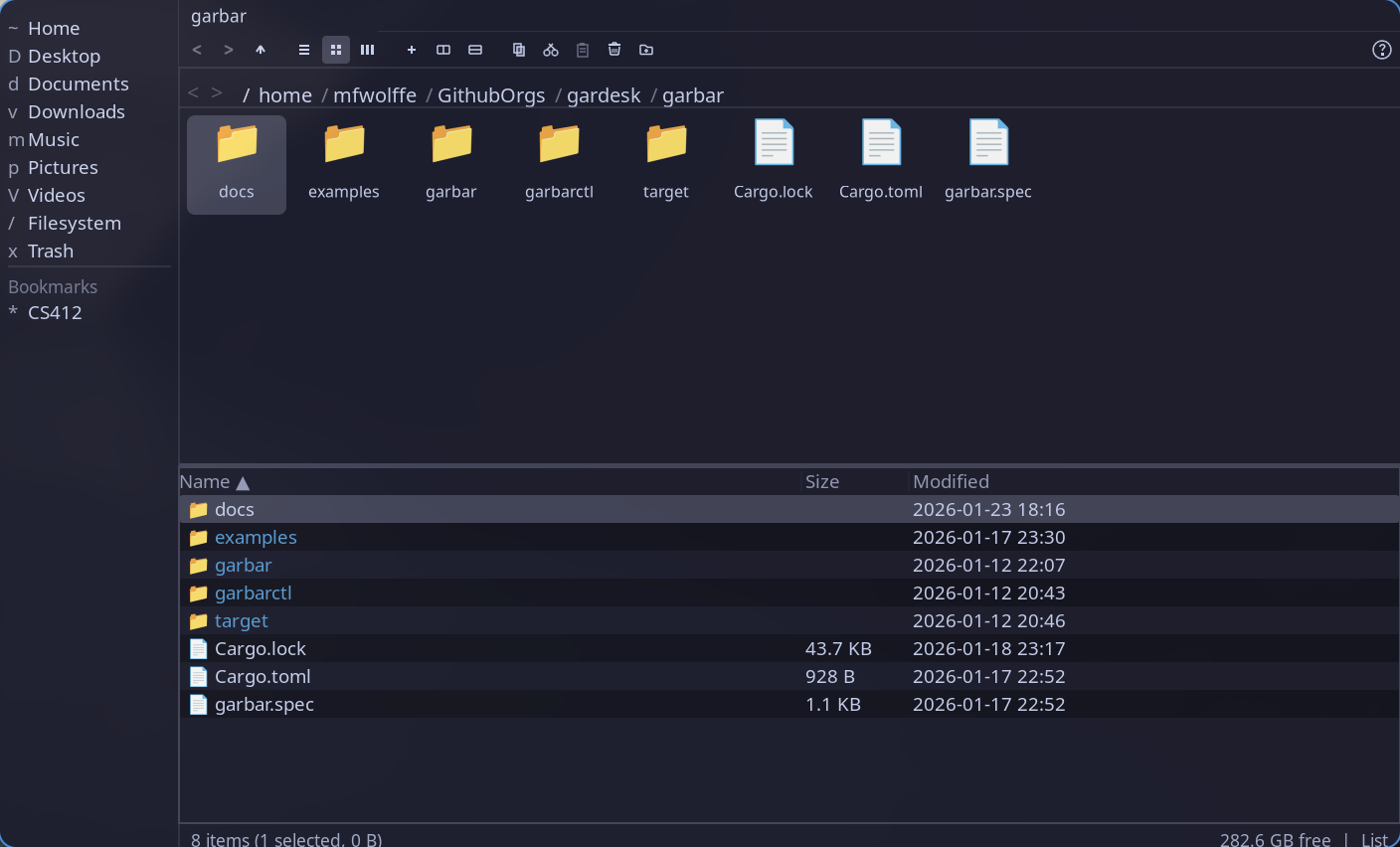
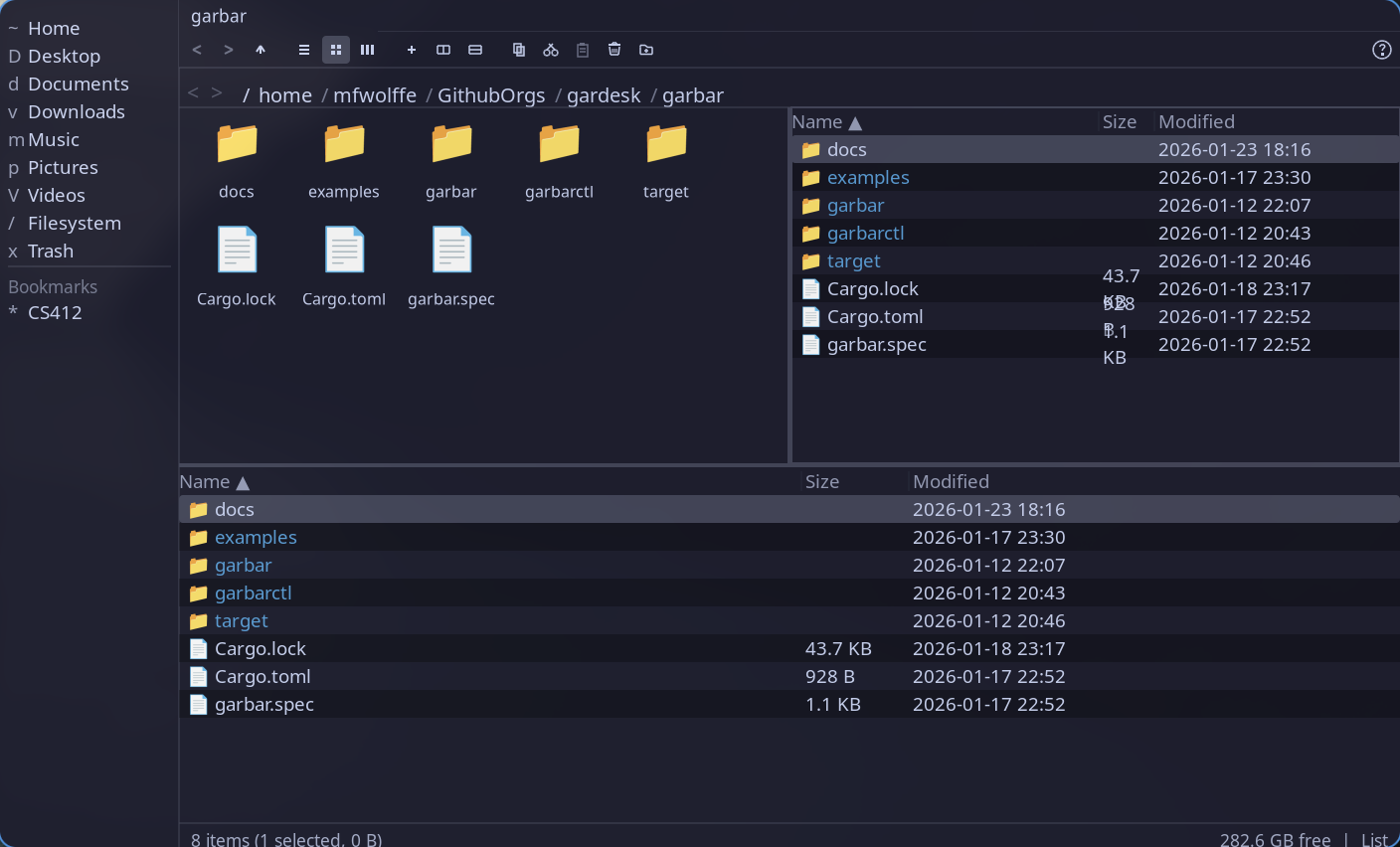
A multi-paned graphical file manager with tabbed navigation, multiple view modes, and full file operations. garfield features list, grid, and column views, split-pane layouts, undo/redo history, Freedesktop trash support, and IPC control via garfieldctl.
Features
- List, grid, and column view modes
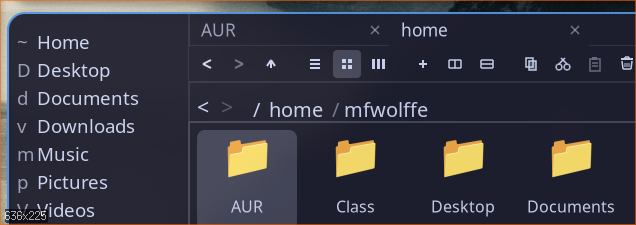
- Multi-tab navigation with keyboard shortcuts
- Horizontal and vertical split panes
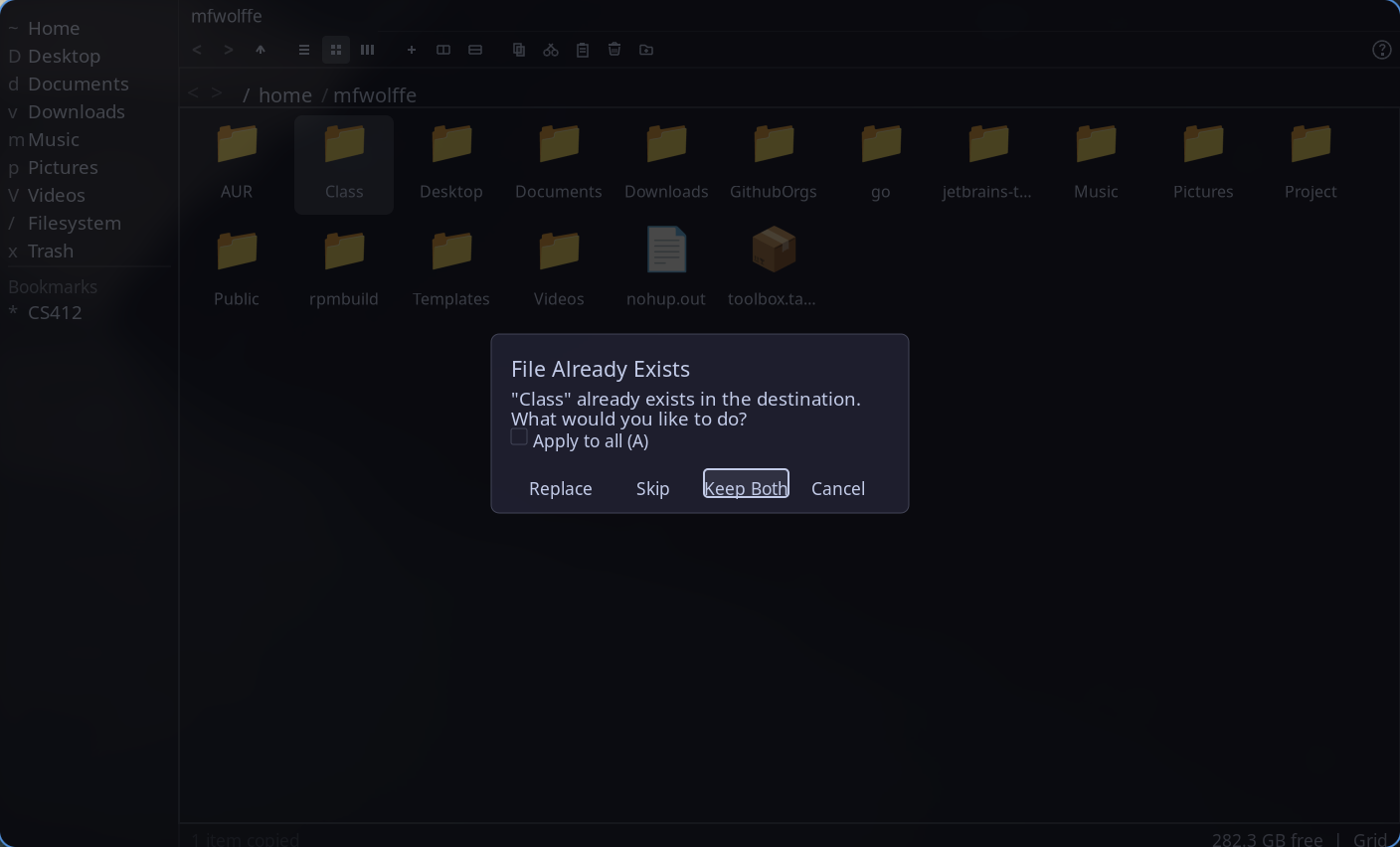
- Copy, cut, paste with conflict resolution
- Freedesktop trash support with metadata
- Undo/redo for all file operations (100 levels)
- Inline rename with cursor editing
- Bookmarks sidebar with drag-and-drop
- XDG places and auto-detected mounted volumes
- Context menu with sort, open-with, and file actions
- garfield-portal: XDG Desktop Portal file picker backend
- Picker mode for file/folder/save dialogs
- Built-in help modal (F1)
- IPC control via garfieldctl
- Address bar for direct path editing
Quick Start Guide
Get up and running with garfield in a few steps. This guide covers installation, launching, and essential keybindings.
1. Installation
Install garfield using the unified installer or build from source:
$ curl -fsSL https://gar.musicsian.com/install.sh | bash -s -- --component=garfield # Install via script
$ cd ~/.local/src/gardesk/garfield && cargo build --release # Or build from source
2. Launch
Run garfield from a terminal or application launcher:
$ garfield # Open home directory
$ garfield /path/to/directory # Open specific directory
$ garfield ~/Documents # Example: open Documents
3. Essential Keybindings
| Key | Action |
|---|---|
| Up/Down or k/j | Navigate files |
| Enter | Open file/directory |
| Backspace | Go to parent directory |
| Ctrl+C / Ctrl+X | Copy / Cut |
| Ctrl+V | Paste |
| Delete | Move to trash |
| F2 | Rename |
| Ctrl+T | New tab |
| Ctrl+Tab / Ctrl+Shift+Tab | Next / previous tab |
| Ctrl+1/2/3 | List/Grid/Column view |
| H | Toggle hidden files |
| Ctrl+Z / Ctrl+Y | Undo / Redo |
| F1 | Show help |
| q or Escape | Quit |
4. View Modes
Switch between view modes with keyboard shortcuts or toolbar buttons:
- Ctrl+1 - List view with columns (name, size, date)
- Ctrl+2 - Grid view with icons/thumbnails
- Ctrl+3 - Column view (macOS Finder-style)
- H - Toggle hidden files
5. Split Panes
Create split layouts for side-by-side file management:
- Ctrl+Shift+H - Split horizontally
- Ctrl+Shift+V - Split vertically
- Ctrl+Shift+Arrow - Focus adjacent pane
- Ctrl+Shift+W - Close focused pane
Releases
v0.1.0 Latest