gartray
Quick Settings Panel
A quick settings panel with controls for volume, brightness, network (including enterprise WiFi), bluetooth, battery status, and power options. Built with zbus for D-Bus integration and gartk for X11/Cairo rendering.
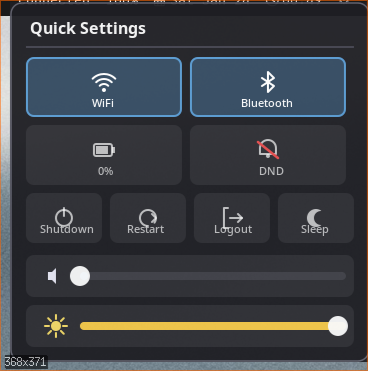
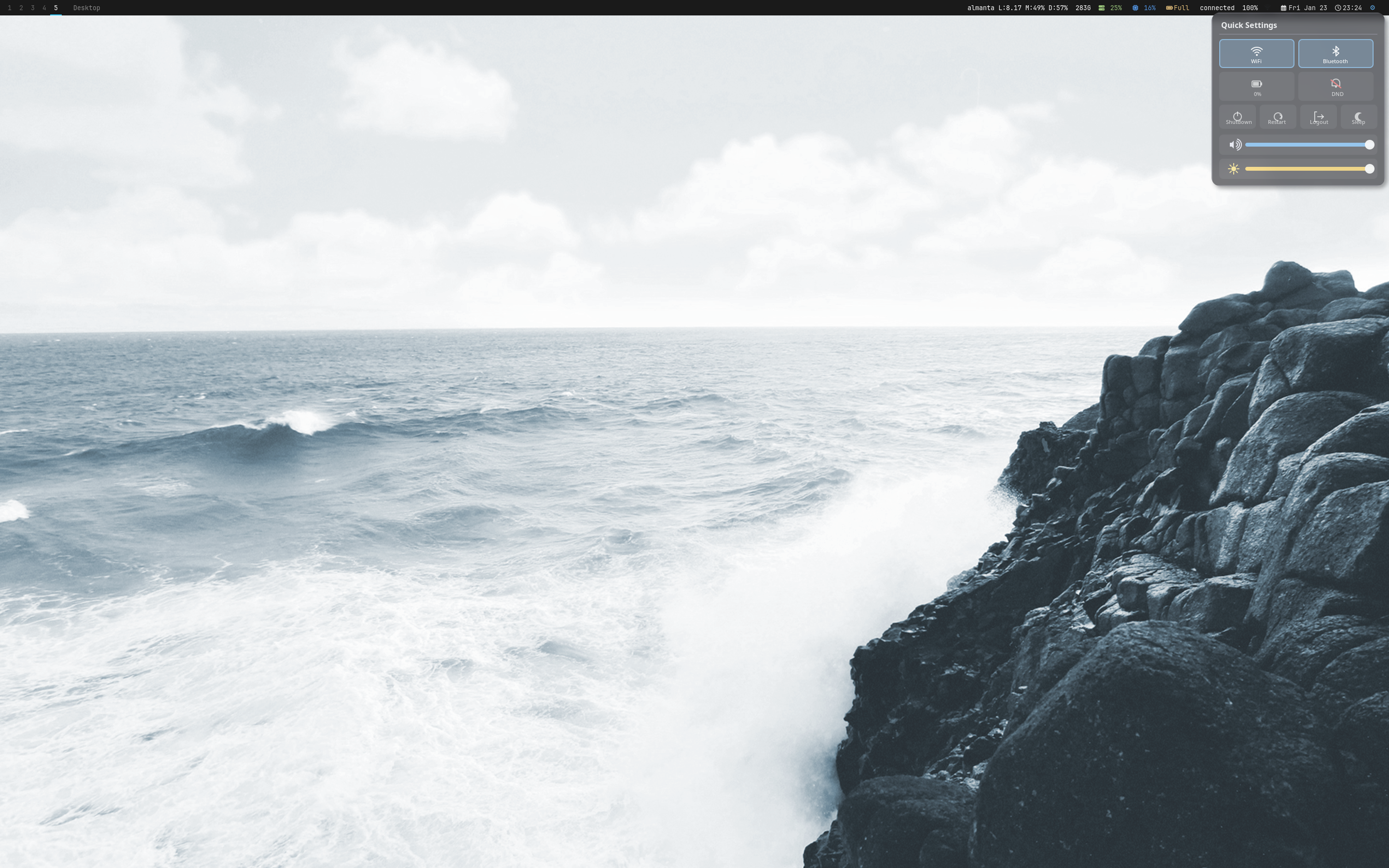
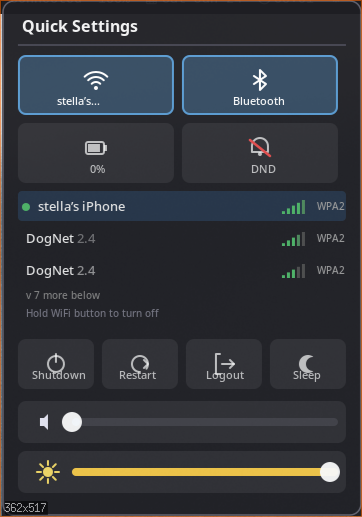
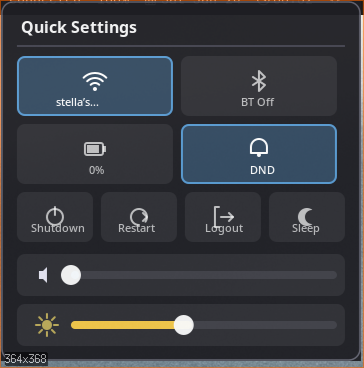
Features
- Quick settings panel with system controls
- Volume control via WirePlumber/PipeWire
- Brightness control via sysfs backlight
- Network management via NetworkManager
- Enterprise WiFi (802.1X) with EAP form UI
- Bluetooth control via BlueZ
- Battery status via UPower
- Power actions via systemd-logind
- Do Not Disturb toggle (dunst integration)
- Keyboard navigation with Escape, Tab, and arrow keys
- IPC control via gartrayctl
Quick Start Guide
Get gartray running as a standalone quick settings panel or integrated with garbar.
1. Installation
Install gartray using the unified installer or build from source:
2. System Dependencies
gartray requires these system services for full functionality:
- PipeWire/WirePlumber - Volume control
- NetworkManager - Network/WiFi control
- BlueZ - Bluetooth control
- UPower - Battery status
- systemd-logind - Power actions
- dunst - Do Not Disturb (optional)
3. Running gartray
gartray runs as a daemon with three modes:
4. Configuration
Create a configuration file at ~/.config/gartray/config.toml:
5. Control with gartrayctl
Use gartrayctl to control the running daemon:
Configuration Reference
gartray uses TOML configuration at ~/.config/gartray/config.toml.
Full Configuration Example
# Quick settings panel
[panel]
enabled = true
width = 360                # Panel width in pixels
modules = [
  "volume",
  "brightness",
  "network",
  "bluetooth",
  "battery",
  "power"
]

# Volume control options
[panel.volume]
show_per_app = false       # Show per-application volume sliders
show_input = false         # Show input device controls

# Network options
[panel.network]
show_vpn = false           # Show VPN connections
show_ethernet = false      # Show ethernet interfaces

# Bluetooth options
[panel.bluetooth]
show_battery = false       # Show device battery percentage

# Theme customization
[theme]
preset = "dark"            # "dark", "light", or "custom"
Available Panel Modules
| Module | Backend | Description |
|---|---|---|
| volume | wpctl | Volume slider and mute toggle |
| brightness | sysfs | Screen brightness slider |
| network | NetworkManager | WiFi networks and connection status |
| bluetooth | BlueZ | Bluetooth devices and pairing |
| battery | UPower | Battery status and time remaining |
| power | systemd-logind | Shutdown, reboot, suspend, hibernate |
| dnd | dunstctl | Do Not Disturb toggle |
Overview
gartray is a quick settings panel for the gar desktop environment. It provides a popup panel with controls for volume, brightness, network, bluetooth, battery, and power actions.
Note: System tray functionality (XEMBED and SNI protocols) has been moved to garbar's built-in tray module. gartray now focuses on the quick settings panel.
Architecture
gartray consists of two binaries:
gartray- Main daemon managing the popup panelgartrayctl- Control client for IPC commands
Key Components
| Component | Purpose |
|---|---|
| daemon | Main event loop, lifecycle management |
| panel | Quick settings popup window |
| panel/eap | Enterprise WiFi (802.1X) authentication form |
| ipc | Unix socket IPC server/client |
| config | TOML configuration loading |
Dependencies
- gartk - Shared toolkit (gartk-core, gartk-x11, gartk-render)
- zbus 4.0 - D-Bus communication
- x11rb 0.13 - X11 protocol
- cairo-rs 0.20 - 2D graphics
- tokio 1.0 - Async runtime
Quick Settings Panel
The quick settings panel provides a unified interface for common system controls. It appears as a popup window that can be triggered via IPC or click events.
Select a module from the sidebar to learn about its specific functionality.
Panel Features
- Transparent ARGB window with no decoration
- Keyboard grab for input capture
- Cairo-based rendering
- Slider controls for continuous values
- Toggle buttons for binary options
- List views for network/bluetooth devices
- Hover and drag interaction support
Keyboard Shortcuts
| Key | Action |
|---|---|
| Escape | Close panel / cancel password entry / cancel EAP form |
| Enter | Connect to network / confirm EAP form |
| Tab | Next field (EAP form) |
| Shift+Tab | Previous field (EAP form) |
| Left / Right | Move cursor in text fields / cycle dropdowns |
| Home / End | Jump to start / end of text field |
Volume Control
Controls audio volume via WirePlumber/PipeWire using the wpctl command.
State
volume- Current volume (0.0 to 1.0)muted- Whether audio is muted
Commands
Output Parsing
The wpctl get-volume output is parsed:
Volume: 0.50- Volume at 50%Volume: 0.50 [MUTED]- Volume at 50%, muted
Configuration Options
[panel.volume]
show_per_app = false   # Per-application volume sliders
show_input = false     # Input device controls
Brightness Control
Controls screen brightness via the sysfs backlight interface.
State
brightness- Current brightness (0.0 to 1.0)device- Backlight device namemax_brightness- Maximum brightness value
Sysfs Interface
Brightness is read from and written to these files:
/sys/class/backlight/{device}/brightness- Current value/sys/class/backlight/{device}/max_brightness- Maximum value
Device Discovery
gartray automatically discovers the first available backlight device in /sys/class/backlight/.
Common device names include:
intel_backlight- Intel integrated graphicsamdgpu_bl0- AMD graphicsacpi_video0- ACPI backlight
Note: Writing to brightness files may require root permissions or udev rules.
Consider using brightnessctl or logind integration for unprivileged access.
Network Control
Controls WiFi and network connections via NetworkManager D-Bus interface.
State
wifi_enabled- Whether WiFi radio is onconnected_ssid- Currently connected networkaccess_points- List of available networksscanning- Whether a scan is in progress
Access Point Info
ssid- Network namestrength- Signal strength (0-100%)connected- Currently associatedsecurity- Encryption typepath- D-Bus object path
Enterprise WiFi
When connecting to an enterprise (802.1X) network, gartray displays an EAP authentication form. See the Enterprise WiFi section in the sidebar for details.
Backend
Network connections are managed via nmcli (NetworkManager command-line tool).
Configuration Options
[panel.network]
show_vpn = false       # Show VPN connections
show_ethernet = false  # Show ethernet interfaces
Enterprise WiFi (802.1X)
gartray supports enterprise WiFi networks that require 802.1X/EAP authentication. When an enterprise network is detected, an EAP form is displayed for credential entry.
Supported EAP Methods
| Method | Description |
|---|---|
| PEAP | Protected EAP (most common for enterprise WiFi) |
| TTLS | Tunneled TLS |
EAP Form Fields
- Identity - Username or email for authentication
- Password - Authentication password
- Anonymous Identity - Outer identity (optional, for privacy)
- CA Certificate Path - Path to certificate authority file (optional)
- Phase 2 Method - Inner authentication: MSCHAPv2, MSCHAP, PAP, CHAP, or GTC
Connection via nmcli
Enterprise connections are established using nmcli rather than D-Bus EAP calls.
This provides broader compatibility with NetworkManager configurations.
Bluetooth Control
Controls Bluetooth via BlueZ D-Bus interface (org.bluez).
State
powered- Whether Bluetooth is enabledavailable- Whether adapter is presentdevices- List of known devicesdiscovering- Whether scanning for devices
Device Info
name- Human-readable device nameaddress- MAC addresspaired- Bonded with deviceconnected- Active connectiontrusted- Auto-connect enabledicon- Theme icon name
Configuration Options
[panel.bluetooth]
show_battery = false   # Show device battery percentage
Battery Status
Displays battery information via UPower D-Bus interface.
D-Bus Interface
| Interface | org.freedesktop.UPower.Device |
| Path | /org/freedesktop/UPower/devices/DisplayDevice |
Properties
| Property | Description |
|---|---|
| Percentage | Battery level (0-100%) |
| State | Charging (1), Discharging (2), Charged (4) |
| TimeToEmpty | Seconds until empty |
| TimeToFull | Seconds until fully charged |
| IsPresent | Whether battery is installed |
Power Actions
Provides power management actions via systemd-logind D-Bus interface.
D-Bus Interface
| Interface | org.freedesktop.login1.Manager |
| Path | /org/freedesktop/login1 |
Available Actions
| Action | D-Bus Method | Fallback |
|---|---|---|
| Shutdown | PowerOff() | systemctl poweroff |
| Reboot | Reboot() | systemctl reboot |
| Suspend | Suspend() | systemctl suspend |
| Hibernate | Hibernate() | Suspend (fallback) |
| Logout | TerminateSession() | pkill -TERM -x gar |
Do Not Disturb
Toggles notification pause via dunst notification daemon.
State
enabled- Whether DND is activedunst_available- Whether dunst is running
Commands
Note: If dunst is not available, gartray tracks DND state locally but cannot affect notifications.
Configuration
gartray is configured via TOML at ~/.config/gartray/config.toml.
File Locations
~/.config/gartray/config.toml- Configuration file$XDG_RUNTIME_DIR/gartray.pid- PID file$XDG_RUNTIME_DIR/gartray.sock- IPC socket
Loading Behavior
Configuration is loaded at startup. If the file is missing, built-in defaults are used.
Use gartrayctl reload to reload configuration without restarting.
Custom Config Path
Integration
gartray can run standalone or integrate with other gardesk components. Select an integration mode from the sidebar to learn more.
Standalone Mode
In standalone mode, gartray runs its panel independently of garbar.
Starting the Daemon
Autostart
Add gartray to your X11 startup script:
# Start gartray before window manager
gartray daemon &

# Start window manager
exec gar
Systemd User Service
[Unit]
Description=gartray quick settings
After=graphical-session.target

[Service]
ExecStart=%h/.local/bin/gartray daemon
Restart=on-failure

[Install]
WantedBy=graphical-session.target
Integration with garbar
garbar handles system tray icons (XEMBED/SNI) directly via its built-in tray module. gartray complements garbar by providing the quick settings panel.
Quick Settings Panel Trigger
garbar can trigger gartray's quick settings panel via IPC:
# garbar sends to gartray via Unix socket:
# /run/user/1000/gartray.sock (or /tmp/gartray.sock)
# {"command":"toggle","x":100,"y":200}
Typical Setup
- Start gartray daemon (handles quick settings panel)
- Start garbar with tray module (handles tray icons)
- Configure garbar quick_settings to trigger gartray panel on click
Rendering
gartray uses Cairo for 2D graphics rendering with ARGB32 transparency support.
Icon Sources
Icons are loaded in priority order:
- Theme icons - Searched in icon theme directories
- Pixmaps - ARGB32 data from SNI D-Bus properties
- Placeholder - Fallback if no icon available
Icon Theme Search Paths
~/.local/share/icons/usr/share/icons/usr/share/pixmaps
Themes Searched
- hicolor
- Adwaita
- breeze
- Papirus
Color Format Conversion
SNI icons use network byte order (big-endian ARGB), while Cairo uses native byte order (BGRA on little-endian systems):
D-Bus ARGB (big-endian):  A R G B
Cairo BGRA (native):      B G R A
Common Workflows
Basic Usage
Position Panel at Cursor
Show the panel at a specific position (useful for keybinds):
Keybind in gar
Add a keybind in your gar config to toggle the panel:
-- Toggle gartray quick settings panel
gar.bind("Super+Shift+s", function()
    os.execute("gartrayctl toggle")
end)
Volume Control Keybinds
Direct volume control without opening the panel:
Brightness Control Keybinds
Direct brightness control:
Reload Configuration
IPC Protocol
gartray uses a Unix domain socket for IPC communication with gartrayctl.
Socket Location
The socket is created at $XDG_RUNTIME_DIR/gartray.sock or /tmp/gartray.sock.
Protocol Format
Messages are JSON objects, one per line (JSON Lines format).
Commands
| Command | JSON | Description |
|---|---|---|
| show | {"command":"show","x":100,"y":200} | Show panel at position |
| hide | {"command":"hide"} | Hide panel |
| toggle | {"command":"toggle","x":100,"y":200} | Toggle panel visibility |
| reload | {"command":"reload"} | Reload configuration |
| status | {"command":"status"} | Get daemon status |
| quit | {"command":"quit"} | Stop daemon |
Response Format
// Success
{"success": true, "message": null, "data": null}

// Success with visibility (toggle/show/hide)
{"success": true, "message": null, "data": null, "visible": true}

// Error
{"success": false, "message": "error description", "data": null}
gartrayctl Commands
Direct Socket Communication
You can communicate directly with the socket using standard tools:
Troubleshooting
Panel not showing
Check if the gartray daemon is running:
For tray icon issues, see garbar's tray module documentation instead.
Volume control not working
Verify WirePlumber/PipeWire is running:
Brightness control not working
Check backlight device and permissions:
You may need to add your user to the video group or create udev rules for write access.
Network/Bluetooth not showing
Verify D-Bus services are running:
Power actions require password
Ensure polkit is configured for passwordless power actions:
polkit.addRule(function(action, subject) {
    if ((action.id == "org.freedesktop.login1.power-off" ||
         action.id == "org.freedesktop.login1.reboot" ||
         action.id == "org.freedesktop.login1.suspend" ||
         action.id == "org.freedesktop.login1.hibernate") &&
        subject.isInGroup("wheel")) {
        return polkit.Result.YES;
    }
});
Daemon already running
Check for existing daemon and stop it:
Debug logging
Enable debug output to diagnose issues: